A Midsummer Day’s Update

A follow-up to some some previous posts…

1. Apple released a software update to iMovie for iPhone.  Works like a charm now.  No more still image issue.

2.  Looking forward to trying out Hulu Plus.  Between that and ESPN3.com, I figure I can get 60% of my TV watching needs from just two websites, and I can access them from just about any web-connected device I own.   Speaking of ESPN3, I have no idea why ESPN and internet service providers aren’t promoting it more.  It’s friggin’ great.  ESPN3 is basically all the sporting events that ESPN covers made accessible via the web, with many more exclusive to the web.  Not all ISP’s offer it though.  A list of ESPN3.com compatible ISPs can be found here.

3.  Still not regretting returning the EVO.

iPhone 4: the antenna isn’t an issue for me, but this is…

Yesterday I started making my first video using iMovie for iPhone 4.  I was giddy.  I couldn’t believe I was making a project on my cell phone with the same non-linear ease I used to only expect from a top-of-the-line desktop machine (I’ve been using Final Cut Pro since the day it came out over a decade ago).   There were some limitations, of course, but nothing I couldn’t work around.   I made a video for my girlfriend, timing pictures and video of her nephews and niece to one of her new favorite songs. I showed it to her on the phone’s high quality screen.  She loved it.  She wanted to share it with her sister 3000 miles away.   And that’s when I had a problem.  A big problem.  Every time I tried to export the video, the app crashed.

A simple Google search turned up this support document on Apple’s website.

Apparently iMovie currently has a problem with still images:  use more than a dozen or so in a project and you could start to have issues exporting.  I had close to 40 photos in my project.   Playing around with the suggested settings didn’t help.  Apple’s final suggestion:  Use less photos.

In other words:  When all else fails, start over again with lesser ambitions.

That’s not an attitude I’m using to hearing from Apple.

Anyways, I’m not going to do that. I’ll continue to show off the video on the phone while I wait for a bug fix (it’s clearly a bug — the App has no problem processing all those photos on the fly during editing or playback — just when compiling for export).  When that will come, no clue.  Apple seems a little busy at the moment.  But at least while I wait I can listen to some podcasts

Trick to touch-typing on an iPad: Retrain your eyes, not your fingers

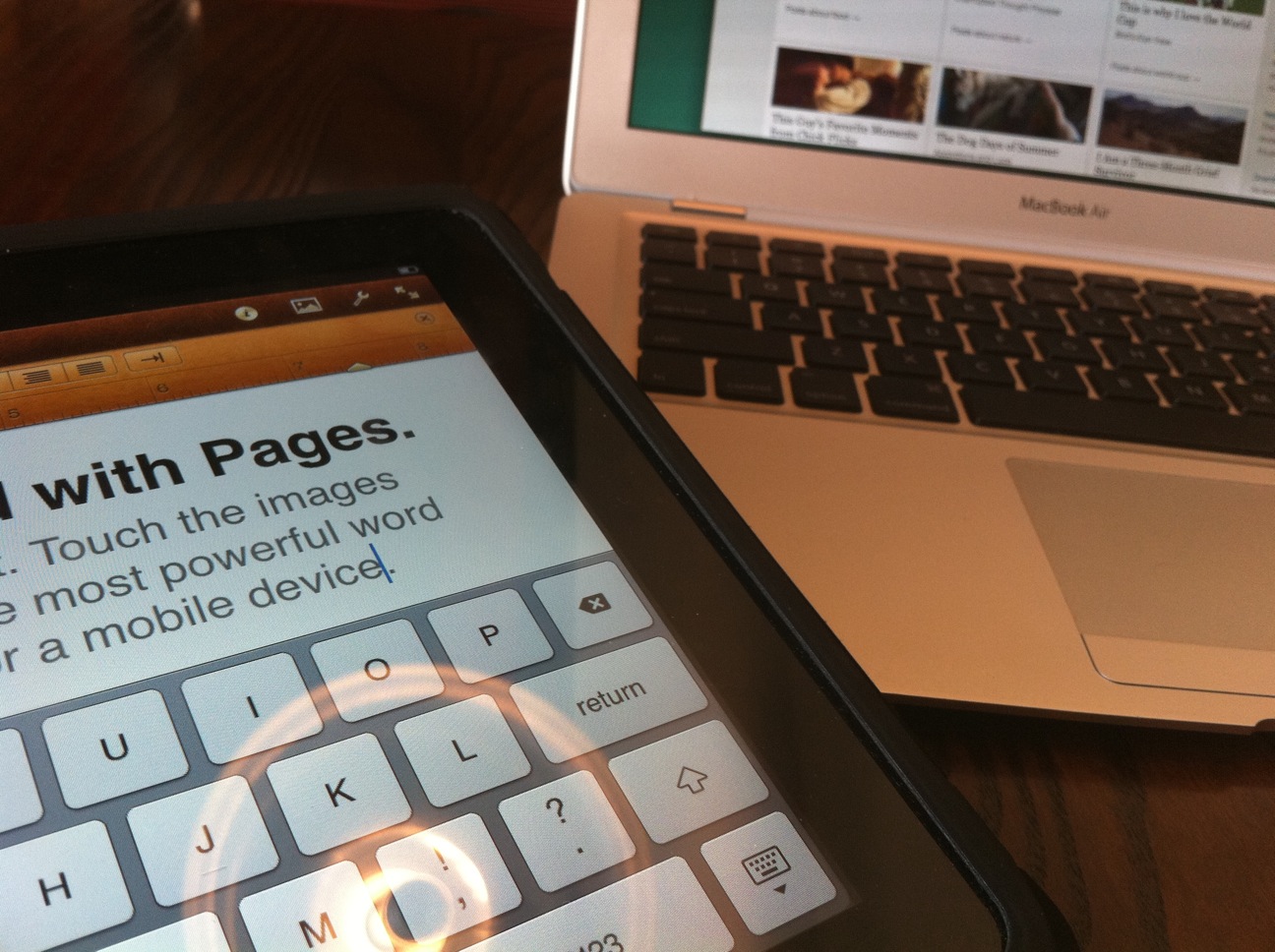
I noticed something interesting about people’s responses to the iPad’s virtual keyboard: people who are slow typists tend to like it (or at least not mind it) while people who are touch-typists either avoid it at all costs (got an external keyboard) or didn’t even buy the darn thing because it was a dealbreaker.

Keyboards Side By Side

Okay, so that’s not very interesting. Of course touch-typists are more sensitive to anything that can slow down their process — like, for example, not having actual keys to press. As a touch typist, I used to be in the “avoid the virtual keyboard” camp. But not anymore. I’m now a firm believer in the power of the virtual keyboard, typing away at it on speeds that I’m now happy with. And all I had to do was… (spoiler alert)

Watch my fingers.

At first it was unintuitive. As a speedy typer, I was taught to watch the screen. The reasoning is that you’ll catch typos quicker that way. Or maybe it’s just to show off.

But if that’s creating more typos than it’s fixing, time to change approaches.

The iPad’s problem isn’t key size. The keys are more than big enough. The problem also isn’t the virtuality of it all. The fingers don’t care whether the button is real or not. The problem is mostly that the keys are spaced out differently than on a typical real keyboard. But instead of retraining my fingers to work on a different space (a massive task), I simply retrained my eyes to look down while I type. The simple act of tracking my fingers erased the vast majority of errors that slowed me down.

My typing still isn’t perfect, and I still prefer to use a real keyboard when I have a tight deadline, but the keyboard is no longer something I warn people about. And now the iPad is one step closer to replacing my laptop completely… (don’t worry, my dear MacBook, there’s still several steps to go, you’ve got some time left…)

-Eric

ps -yes, I know this isn’t going to help a lot of people… in fact, I suspect the better the typist you are with a standard keyboard, the less any “trick” will help you with non-standard keyboards. But this worked for me, and it’s working for a couple of people who I’ve given this advice to already as well.

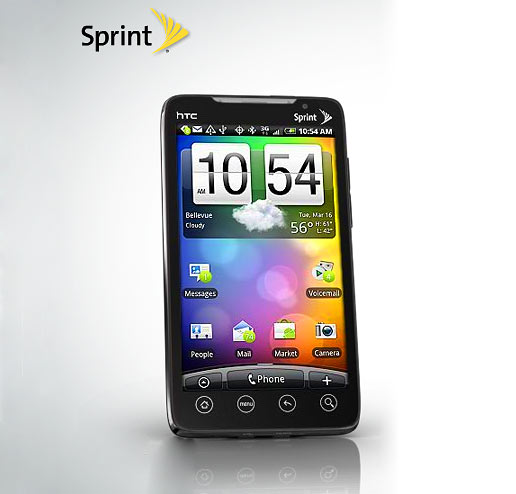
Why I returned my HTC Evo 4G

The Super Phone

First up, I didn’t do it because of the iPhone 4.  Doubt me if you will (and I know you will), but it’s true.

I also didn’t return it because of the screen.  Sure it might not have the highest resolution available, but it’s still pretty darn impressive.  In fact, the screen size was the one thing I might’ve kept the phone for, despite my other gripes.

I didn’t do it because of Android.  Well, not explicitly because of Android.  I don’t mind Android.  I love the widgets, I love the way I could customize the home screen.   I really liked many of things Andoid does that aren’t even options on the iPhone.  I even liked HTC’s custom “Sense” interface.

I didn’t do it because of the battery.  Sure, the battery life of the brand new Evo was only marginally better than my two year old iPhone 3G, but it was a lifespan I could deal with, and if it got worse, buying a new battery would be easy and painless.

And I didn’t do it because of the lack of 4G.  Guess what?  Despite the fact that Los Angeles isn’t yet an officially supported 4G city, I found plenty of places around town with 4G service, including my own neighborhood.  That was actually one of the biggest, more pleasant surprises about the phone.

No, I did it because of one word:  Podcasts.

Yes, you read that right.  Podcasts.

Continue reading “Why I returned my HTC Evo 4G”

My Summer Experiment

On Memorial Day I did something I thought I’d never, ever do.  I cancelled my cable.  Like many, many people, I looked at my cable bill (about $100/month) and wondered if I really watched THAT much TV.  Unlike most people, though, I’m not trying to create a cheaper alternative by watching TV via the internet.  I’m trying to create a better solution.

I mean, if I just bought every episode of every show I watched for $2 on iTunes, would that even come close to $100?  I work in TV, I grew up with TV as my babysitter, I truly believe TV is in a golden age of quality right now (reality TV aside), and I still don’t think I watch 50 episodes per month.  So if I just bought every show a la carte, not only would I get the same time shifted content I get via a DVR, but I’d also have the choice to watch it wherever I want — on my TV, on my laptop, on my iPad, or even on my iPhone.

That right there is an improvement.

The two downsides?  No live content.  And no option to start watching things the same night they aired (iTunes content doesn’t appear until the next day).

So it’s not a perfect system by any means.  At least not yet.  Like I said, it’s an experiment, and I’m going play with different variables all summer.  I’m giving myself a $100/month budget to acquire as much content as I can through legal means.

Here’s the equipment I already have to work with:

  1. A desktop computer already hooked up to a large TV
  2. laptop
  3. PS3
  4. Wii
  5. iPad
  6. iPhone

If I have to buy any new equipment, like an Xbox or an Apple TV, I’ll divide the cost by twelve and count that amount against the 100 bucks/month I’ve allotted myself.

I’ll be checking back in over the summer to share tips and tricks that I’ve found…

-Eric

ps – so you know, I don’t consider having to actually load up a web page just to watch a single TV show an improvement over cable… I’m going to avoid that as much as possible.